Poke2D Arena Online Multiplayer: Rooms & Invite Links
Open Online, not Quick Battle
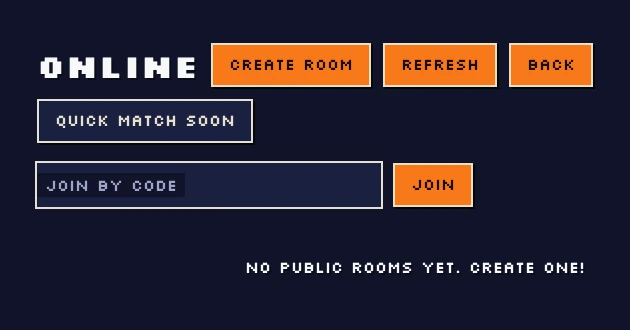
Open Poke2D Arena at /play-online/ and choose ONLINE from the main menu. Online is for a two-player battle over the internet; you do not need an account or a shared local network. Quick Battle and Vs CPU still play against the computer.
This guide describes the current Poke2D Arena browser game, not the retired Empress edition or Big Kid Nation's separate Pokemon Arena 2D. Old EMPRESS1 invitations do not join these rooms.
- Use one online game tab per browser. A second online connection from the same browser can replace the first.
- To play with someone next to you, use separate devices or separate browsers rather than two tabs in one browser.
- Keep the game open and use a stable connection. A browser home-screen shortcut still needs the internet.
Create a public or private room
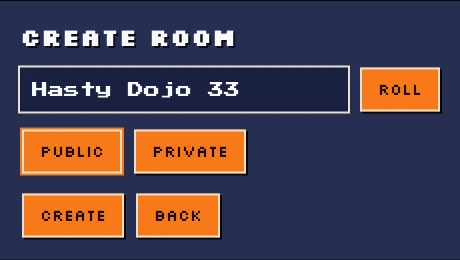
Choose CREATE ROOM in the Online lobby. The game fills in a generated room name such as "Hasty Dojo 33"; press ROLL if you want a different one. Room names come from a fixed word list and cannot be typed. Select PUBLIC or PRIVATE, then press CREATE. Public is selected initially. A public room can appear in the lobby list; a private room is for people who have its full invite link.
Once inside the room, use COPY LINK to copy the invitation. SHARE uses the device's share sheet when available, otherwise it falls back to copying the link. Send a private invitation only to the person you want to play with.
Join from the list, a room code or a link
For a public room, choose JOIN on a waiting room with an open seat. REFRESH loads the current room list. Rooms already full or in battle cannot be joined from that list.
You can also enter a public room's six-character code in JOIN BY CODE and press JOIN. If your friend created a private room, ask for the full COPY LINK invitation instead of just the code: the private invitation carries the access information needed to enter.
Opening an invitation brings you into the room flow; it is not a request to start the battle immediately. If a room has already closed or someone else takes the open seat, return to the lobby and ask for a fresh invitation.
Pick your three Pokemon, then both press Ready
In the room, choose CHANGE TEAM to open the team picker. Bring three different Pokemon, finish the selection, and return to the room. An incomplete or invalid team cannot be readied. Each player chooses their own team.
Press READY when you are happy with your lineup. CANCEL withdraws your ready state while you are waiting. The battle moves into a countdown after both players are ready; this current lobby does not use the retired edition's separate host Start Battle button.
- Watch the two player seats: WAITING, EDITING TEAM and READY explain what the other player is doing.
- Do not confuse the room code with your trainer name. Trainer names are generated by the game and cannot be typed; press ROLL next to TRAINER NAME in the room, or in Settings, to get another one.
- For movement, skill buttons and teammate switching, read the current controls guide before your first online fight.
During a match: connection, pause and rematch
The battle HUD shows connection information for YOU and FOE. If a connection drops, the game can show a reconnecting message and countdown. Leave the tab open while it tries to recover; recovery is not guaranteed if the connection does not return in time.
Opening the online pause menu does not pause the opponent or stop the match. Resume returns to play. Surrender asks for confirmation before conceding the match.
On the result screen, REMATCH sends a request to the other player. You may see a waiting message until the opponent also agrees. BACK TO LOBBY returns to the public lobby; use the room controls again when you want to arrange another opponent.
If a friend cannot join
First check that both players opened the current /play-online/ game. For a private room, resend the complete invitation without removing its parameters. For a public code, check all six characters. Do not reuse a code from a closed room.
An empty public list only means no joinable rooms are listed at that moment. Create a room and invite a friend; the disabled QUICK MATCH SOON button does not search for an opponent.
If Online says it is paused or rooms cannot be loaded, use Quick Battle or Vs CPU and try Online again later. If the game reports that another tab replaced the connection, close the extra game tab and return to the one you want to use.